Support – PearGIS

PearGIS FAQs

Councils

Local Authorities

Tree Management

Arboricultural, Ecology and Forestry Services

Rural

Farm and Estate Management

Miscellaneous

Other

Getting Started

When you open PearGIS for the first time, you will need to register the software so that all features will be available to you. To register your copy, go to ‘File’ and then ‘Registration and About’ and make a note of the number shown in the ‘Registration ID’ box.

You will then need to either email us info@peartechnology.co.uk or call us on 02392 499 689 quoting that number and we can provide you with an unlock code.

Perpetual Licence: This is a licence for a specific user to use the software on a single machine.  Contact Pear Technology if you want to change either. This licence does not cover regular support and updates.

Subscription Licence: This is a shorter term licence renewable every 365 days and, like the Perpetual Licence, is intended for a single user on a single machine. This licence does cover support and updates.

Trial Licence: The initial install allows the user to evaluate the software for a period of 30 days.

Support and Updates: A separate annual subscription that runs alongside the perpetual licence allowing support and updates.  If this licence is not renewed then obtaining the latest version of PearGIS would require a fresh purchase.

Eye : An eye symbol can be seen on the left-hand side of the screen. The eye shows which layers are visible on the map. When the eye has a red cross over it, that layer’s objects will be hidden from view. This can be changed by simply clicking the eye, to change between visible and hidden.

Note : If a layer has been made visible, but the layer objects have not displayed on the screen, this could be because there are other visible layers on top. To resolve this, click here.

Padlock : The padlock is used to prevent layer objects being selected and altered by accident. When locked, the layer objects are not selectable (Red Padlock). Layers can be unlocked (Green Padlock) and locked back up by clicking on the padlock.

Chain : The chain icon shows which layers have been categorised as ‘Reference layers’. These layers are locked down and their features cannot be edited or deleted. Any data that is imported into PearGIS as a ‘Reference Map’ will automatically have a chain applied to it and the layer will need to be duplicated if you wish to edit the imported data.

First, make sure the layer your object is on is unlocked (green padlock).

Each type of object must be selected correctly by;

Polygons : Clicking anywhere inside the boundary.

Lines : Clicking anywhere along the length of the line.

Text : Clicking in the middle of the sentence, or word.

To select multiple objects, hold ‘Ctrl’ on your keyboard whilst selecting.

This is situated along the bottom of the screen and displays live information related to activity on the screen.

  1. This shows the scale at which the screen is currently being viewed. This will adjust as you zoom in and out of the map.
  2. Ordnance Survey Great Britain, Easting and Northing coordinates. These will tell you the grid coordinates within 1 square meter of your mouse cursor.
  3. This is the Ordnance Survey Grid Reference.
  4. This will show you the total area of the selected polygon(s).
  5. This will show you the total external perimeter of the selected polygon(s).
  6. This label shows the layer that the selected object is from and also how many objects have been selected. This is useful when there are multiple copies of shapes on different layers and there is more than one unlocked. You can see clearly which layer you have selected the shape from.

The pen indicates which layer is being edited or drawn on. It can be seen next to a layer on the left-hand side of the screen, in the layers tab, when in use.

To add anything to a layer, it must first have the pen next to it.

To move the pen, double-click on the eye or padlock next to the chosen layer. Once finished, the pen can be removed by double-clicking on it, or it can be moved straight onto another layer.

The pen shows clearly which layer an object is going to be moved to, copied to or a new object added to.

If changes are made to the map, such as deleting an object, this action an be undone simply by clicking the undo button in the top left corner.

Alternatively if an action is accidentally undone, it can be redone by clicking the redo button in the top left corner.

A selected object (see above)  can be deselected again by simply right-clicking anywhere on the map.

This is also useful when an action has been completed, (eg. moving a node) and you are satisfied with it, right-clicking completes the action by deselecting the object.

The layers listed in the left-hand column are ordered from top to bottom, as they appear on the map. The top of the list is the layer that is on the top of the map. The sequence of layers is important as the layers at the top can block the view of layers underneath.

It is recommended that text, point and line layers sit towards the top of the layer list, and polygon layers further down the list.

  1. Left-click and hold anywhere on the map.
  2. Move the mouse whilst holding left-click to navigate around.

Or

  1. Use the keyboard arrows to move around the map.
  1. Place the mouse cursor on the area you want to zoom in on.
  2. Use the scroll wheel on the mouse to zoom in or out.

Or

  1. Go to the dropdown menu from the Navigation section in main ribbon.
  2. Select the ‘Zoom In’ or ‘Zoom Out’ function.

Or

  1. Hold down the ‘Shift’ key.
  2. Left-click and drag the mouse to draw a rectangle.
  3. Release the mouse when you have the desired area selected.

Or

  1. If using a numeric keyboard, use the ‘+’ and ‘-‘ keys on the right hand side
  1. Hold down the ‘Shift’ key.
  2. Left-click and drag the mouse to draw a rectangle.
  3. Releasing the mouse when you have the desired area selected.

Or

  1. Go to the dropdown menu from the navigation section of the main ribbon.
  2. Select the ‘Zoom by Drawing a Rectangle’ function.
  3. Left-click and drag the mouse to draw a rectangle.
  4. Release the mouse when you have the desired area selected.
  1. Go to the mapping ribbon at the top of the screen.
  2. Select ‘Zoom to Full Extent’.

  1. Make sure the layer is visible.
  2. Right-click on the layer name.
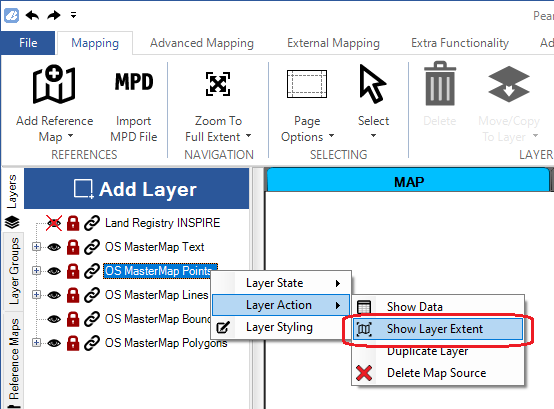
  3. Select ‘Layer Action’ followed by ‘Show Layer Extent’.

Working with Layers

To add a new layer, simply press the ‘Add Layer’ button at the top of the layer list.

When adding a new layer to your map, you will need to choose what type of layer you wish to add. These are as follows:

Layer Type Typical Uses
Text Annotation
Point Trees, Stop Cocks, Hydrants
Line  Hedges, Overhead Cables, Footpaths
Polygon (Area) Fields, Properties, Forestry

  1. Your new layer will automatically be added to the top of the layer list.
  2. The pencil is automatically applied to this layer which means you are editing that layer straight away.
  3. Anything you now draw will go onto the layer with the pencil.
  1. Double left-click on the eye or padlock next to your layer.

Note : Reference layers cannot be edited.

  1. Single left-click and drag the layer name in the layer list up or down.
  2. A temporary line is displayed to indicate where the layer will be positioned.
  1. Right-click the name of your layer in the layer list.
  2. Left-click on ‘Styling Manager’.
  3. Press ‘Set Styling’.

This function enables different layers to be grouped together. Any groups that are created can be found on the far left of the screen, under ‘Layer Groups’.

  1. Select ‘Layer Groups’ on the left-hand side.
  2. Click the ‘Add Group’ button at the top of the layer group (See below).
  3. An editing box will appear and you can give a name to the group.
  4. Then you can add layers into the new group.

Note : If a layer has been added to a group, it will have to be removed from that group before it can be added to a new group.

  1. Open up the ‘Layers Groups’ list from the left-hand side.
  2. Right-click on the name of the group you want to edit and select ‘Edit Group’.
  3. Here, the group can be renamed, new layers added and existing layers removed.

Drawing and Editing

1. Make sure your pen is next to the layer you wish to draw onto.

Or

2. Create a new layer of your choosing (point, line, text or polygon) and make sure your pen is next to your new layer.

  1. Double-left click the eye or padlock next to your line layer to edit this layer.
  2. Press the button on the top ribbon that sits just above where it says ‘Draw’ that looks like a line with points on.
  3. This will put you into draw mode.
  4. Left-click to begin your drawing.
  5. Left-click to add points as you go.
  6. If you a make a mistake, right-click to go back a step.
  7. When you reach the end of your line, double left-click to complete the object.

Note : The line length is visible on the status bar at the bottom of the screen.

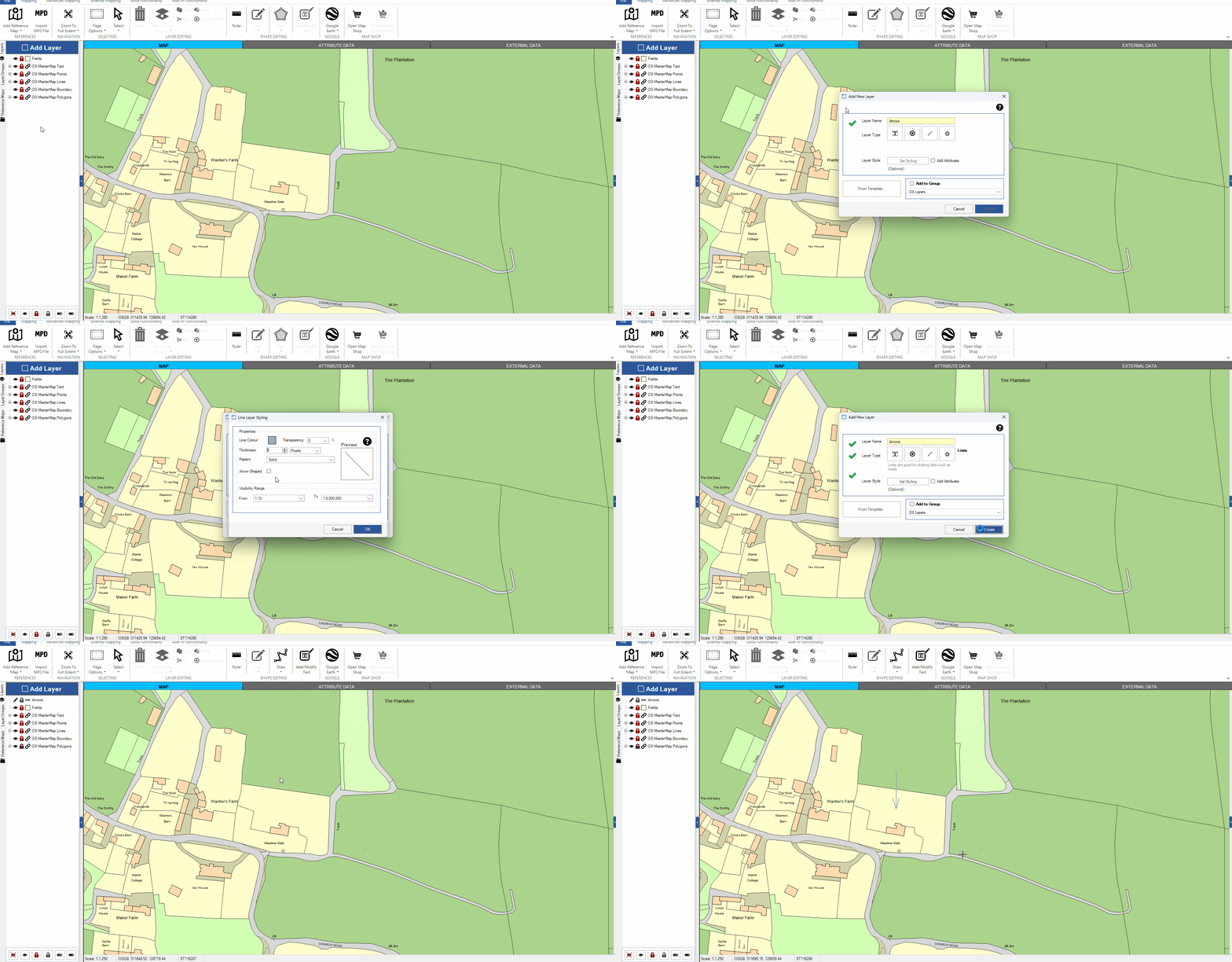
  1. Create a new line layer.
  2. Under layer styling click the box next to ‘Arrow Shaped’.
  3. Double left-click the eye or padlock next to your arrow layer to edit this layer.
  4. In the map window left-click on or near the object you want the arrow to point towards and drag the mouse away.
  5. Release the mouse button to draw the arrow.

  1. Double left-click the eye or padlock next to your polygon (area) layer to edit this layer.
  2. Press the button on the top ribbon that sits just above where it says ‘Draw’ that looks like a pentagon.
  3. This will put you into draw mode.
  4. Left-click to begin drawing.
  5. Left-click to add points as you go.
  6. If you make a mistake, right-click to go back a step.
  7. When you reach the end of your area, double left-click to complete the object.

Note : The area and perimeter are visible on the status bar at the bottom of the screen.

  1. Double left-click the eye or padlock next to your Point layer to edit this layer.
  2. Press the button on the top ribbon that sits just above where it says ‘Draw’ that looks like a bullseye.
  3. This will put you into draw mode.
  4. Left-click on the map where you wish to add a point.
  5. Repeat the process to add additional points.

  1. Double left-click the eye or padlock next to your text layer to edit this layer.
  2. Press the button on the top ribbon that says ‘Add/Modify Text’.
  3. First left-click on the map where you want the text to be located.
  4. Type in the text box, the content you wish to appear.
  5. Choose any other settings such as size, bold, italics etc. 
  6. Press ‘OK’.

Note : This tool is only applicable to polygon (area) or line layers.

  1. Make sure your pen is next to either your line or area layer (double left-click on the padlock to move it).
  2. Just below the ‘Draw’ button on the top ribbon is a dropdown arrow.
  3. Press this to see more options and select the ‘Measured Shape’.
  4. Select the type of shape you want to add; Circle, Rectangle, Ellipse, Line.
  5. Type in the measurements.
  6. Press ‘Add Shape’.
  7. Left-click on the map where you want the shape to go.

Before using the ‘Edit’ tool, you will first need to make sure that you have the layer you wish to edit unlocked, then select the object on the map.

Once selected, there are two ways to edit an object:

1. Press the icon of a pencil in a square (above where it says ‘Edit’).

Or

2. Press the dropdown arrow below the ‘Edit’ button for specific editing tools.

Note : Option 1 is much easier as it gives you most of the editing options at once. However, there are additional editing tools from the dropdown menu.

  1. First, select the object on the map that you wish to edit.
  2. Press the icon of a pencil in a square, above where it says ‘Edit’.
  3. Once in edit mode, simply left-click on one of the squares and drag with your mouse.
  4. You can add a new node by left-clicking anywhere on the line or boundary and dragging.
  5. To delete a node, double left-click on one of the white squares.
  6. Right-click anywhere on the map window to confirm your changes.

  1. First, select the object on the map that you wish to edit.
  2. Press the icon of a pencil in a square, above where it says ‘Edit’.
  3. A ‘Move’ symbol will now have appeared above your point or text.
  4. Left-click and drag the move symbol to the new position.
  5. Right-click anywhere on the map window to confirm your changes.

  1. First, select the object on the map that you wish to edit.
  2. Press the small dropdown arrow below the word ‘Edit’.
  3. Select ‘Move’.
  4. You will see a ‘Move’ symbol over each node.
  5. Left-click and drag from any corner to move the object.
  6. Right-click anywhere on the map window to confirm your changes.

  1. First, select the object on the map that you wish to edit.
  2. Press the icon of a pencil in a square, above where it says ‘Edit’.
  3. You will see a ‘Rotate’ symbol in the bottom right corner of your selected object.
  4. Left-click and drag the ‘Rotate’ symbol to begin rotating your object.
  5. Right-click anywhere on the map window to confirm your changes.
  1. Select the object you wish to delete.
  2. Press the ‘Delete’ button on the top ribbon or the ‘Del’ key on your keyboard.

Copying an object from one layer to another means you are duplicating it. This will result in a copy of the object appearing on another layer, but it will now appear differently, depending on the particular styling settings in this layer.

Moving an object from one layer to another will remove it from the original layer and place it  onto a different one. It will appear differently depending on the specific styling settings in this layer. 

  1. Make sure the objects layer is unlocked.
  2. Double-click the padlock of the layer you are copying the object to, to move the pencil onto this layer.
  3. Left-click on the object you want to copy in order to select it.
  4. Go to the ‘Move/Copy to Layer’ dropdown menu in the main ribbon.
  5. Select ‘Copy to Layer’.

Note : The copy may now sit on top of the original. To view the original object, hide the copy by clicking the eye on the new layer.

  1. Make sure the objects layer is unlocked.
  2. Double-click the padlock on the layer you are moving the object to, to move the pencil to this layer.
  3. Then click on the object you want to move in order to select it.
  4. Go to the ‘Move/Copy to Layer’ dropdown menu in the main ribbon.
  5. Select ‘Move to Layer’.

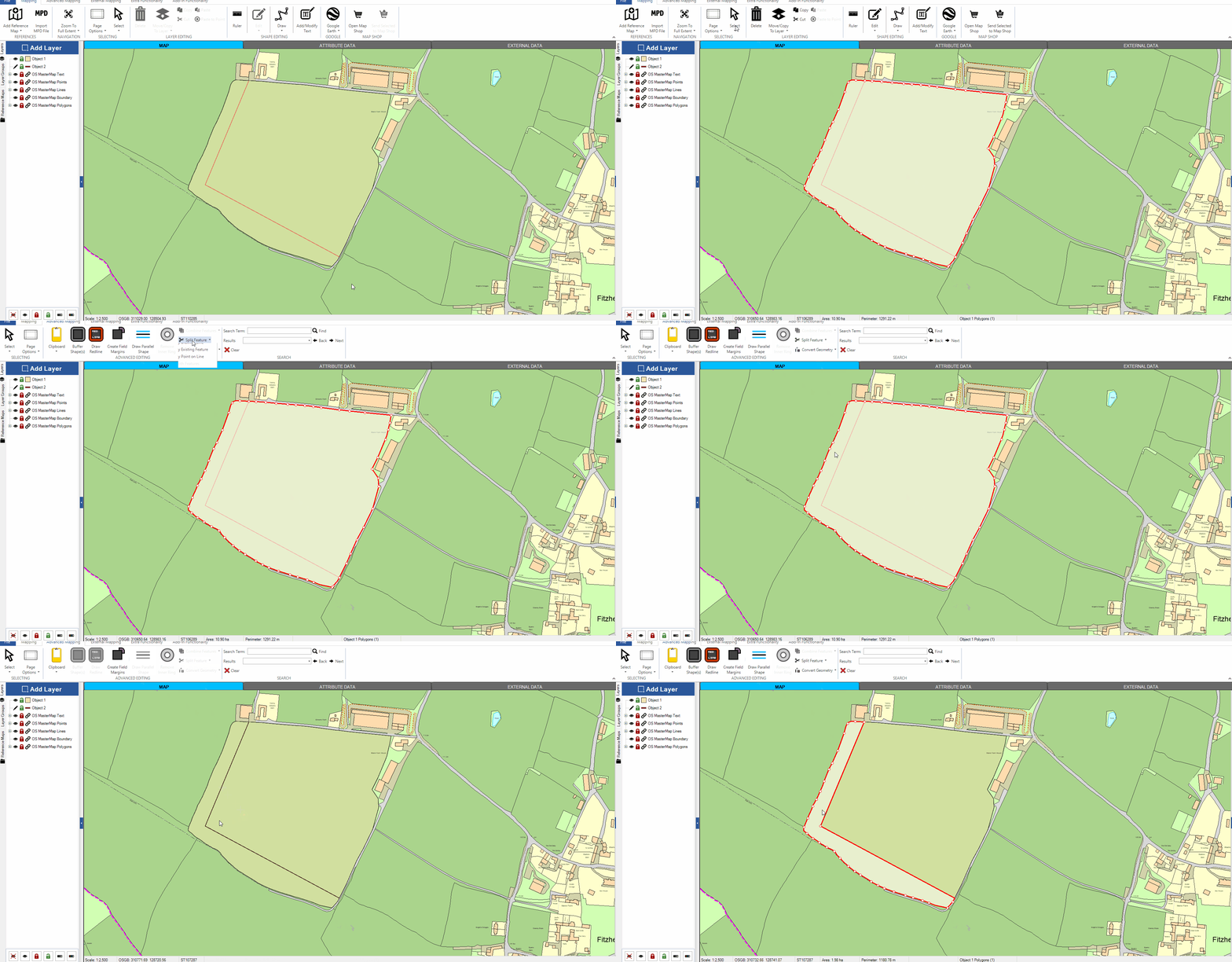
  1. Select the object you wish to split on the map.
  2. Go to the ‘Advanced Mapping’ tab on the top ribbon.
  3. Click the ‘Split Feature’ button and pick ‘By Drawing Line’ from the dropdown menu.
  4. To split the feature, you will need to draw a line all the way through your object (think of a cheese wire going through cheese!).
  5. Left-click outside of your object to begin. Draw the line through the object (adding points as you go if needed), making sure to double left-click outside the object to complete the process.
  6. Your object is now split – click in either half to check the individual objects.

  1. Select the object you want split on the map.
  2. Go to the ‘Advanced Mapping’ tab on the top ribbon.
  3. Click the ‘Split Feature’ button and pick ‘By Existing Feature’ from the dropdown menu.
  4. Click on the existing feature you want to use to split the object.
  5. Your object is now split – click in either half to check the individual objects.

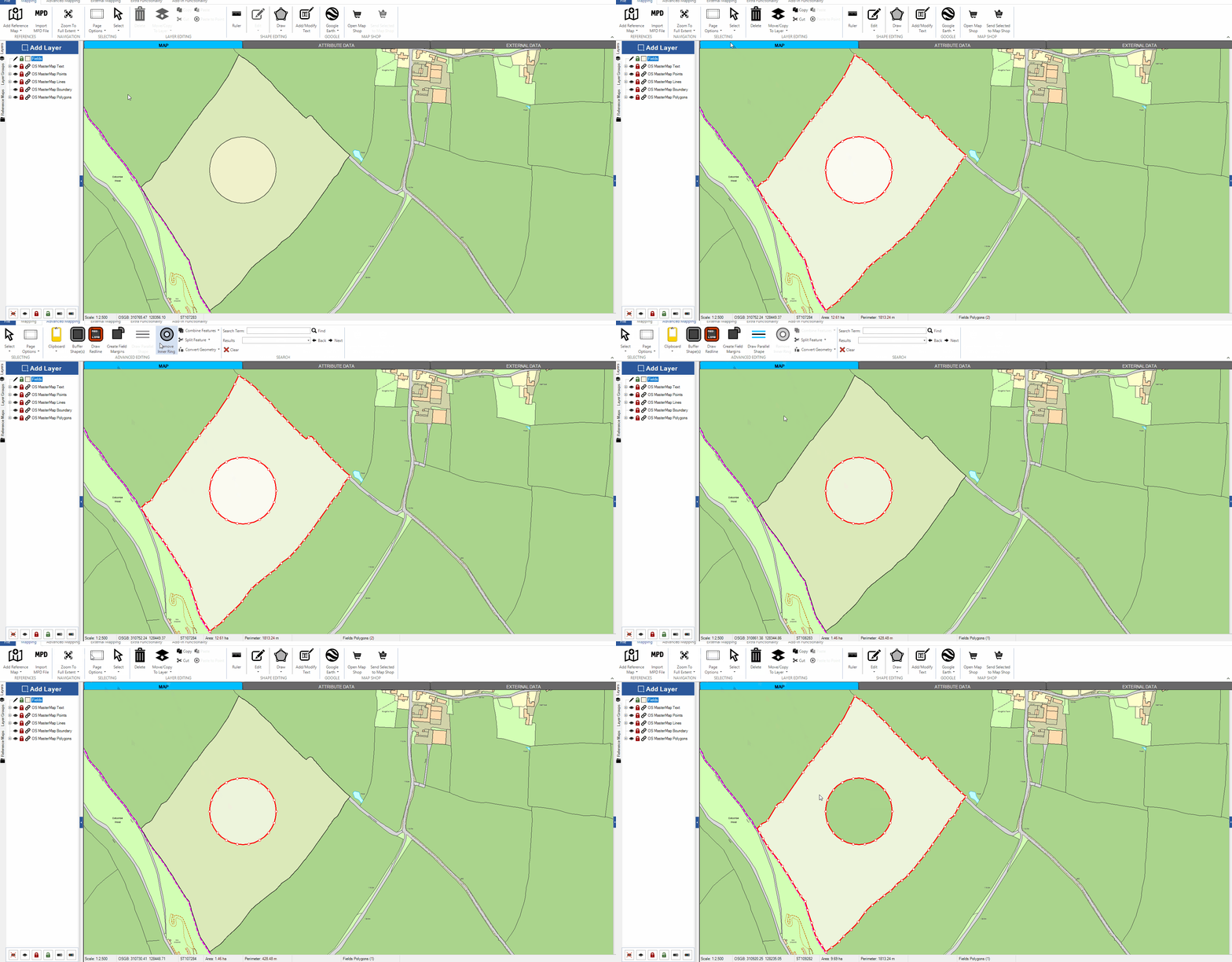
  1. Hold down ‘Ctrl’ on your keyboard and select both areas on the map.
  2. Go to the ‘Advanced Mapping’ tab on the top ribbon.
  3. Click the ‘Remove Inner Ring’ button.
  4. The original area is now split – select the inner area and click the ‘Delete’ button on the main ‘Mapping’ toolbar.

Printing

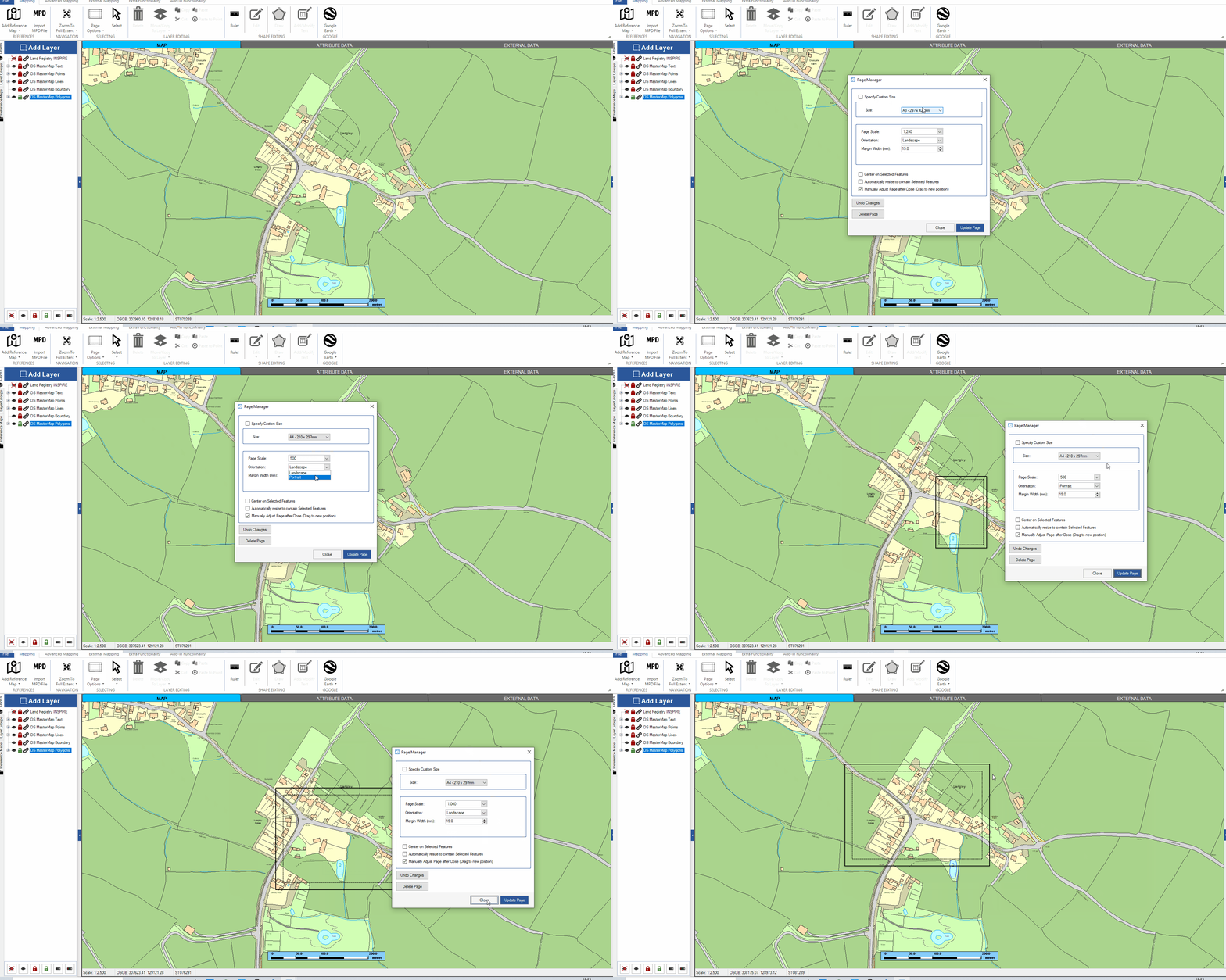
Before you can print your map, you will need to set up the page outline.

  1. Click ‘Page Options’ on the mapping ribbon and select ‘Add Page’.
  2. The page manager will then be displayed and this allows you to modify the page settings. Page scale and size can be adjusted here as well as orientation.
  3. Once you have entered the page information, click ‘Update Page’ and the page outline should now appear on the map.
  4. If you are happy with the current page, click ‘Close’ but if the page needs further adjustments, you can edit the information again and click ‘Update Page’ to see these changes.
  5. After closing the page manager, the page outline will now appear in blue. If you are happy with the page position, right-click to complete the action. If the page needs moving, click on the white arrows in the centre and drag it into the correct position.

To move the page, you will firstly need to set up the page outline. If you have not set up a page outline yet, please click here.

  1. Click ‘Page Options’ on the mapping ribbon and click ‘Move Page’.
  2. Left-click and hold on the white arrows in the middle of the blue page to drag the page into the new position.
  3. Once in the correct position, right-click to complete the move.

To print a map, you will need to firstly set up the page outline. If you have not done this yet, please click here.

  1. After setting up the page outline, click ‘File’ , ‘Print’ and then select ‘Page’. This will now open the print preview window.
  2. In the print preview window, you have the options to add annotations, a title box, legend and a scale bar to your map. To add these features, click on the ones that you require and you will then be presented with customisation options.
  3. When you are ready to print, click the printer button on the right-hand side and choose which printer you would like to use and click ‘OK’.

PearGIS can print directly to PDF making it easier to share your maps with other. You will firstly need to set up a page outline, click here if you have not already done this.

  1. After setting up the page outline, click ‘File’ , ‘Print’ and then select ‘Page’. This will now open the print preview window.
  2. In the print preview window, you have the options to add annotations, a title box, legend and a scale bar to your map. To add these features. click on the ones that you require and you will be presented with individual customisation options.
  3. When you are ready to create the PDF, click the printer button on the right-hand side and choose which PDF printer you would like to use, then click ‘OK’.

Most PCs have a default PDF printer already installed called ‘Microsoft print to PDF’ however, this can only print to paper sizes A3 and A4. For larger prints, we recommend using a free PDF printer called ‘PDF Creator’ which can be downloaded from this link https://www.pdfforge.org/pdfcreator/download.

You can add a title box to any maps in the print preview window.

  1. Click on ‘Title box’ on the left side.
  2. Choose what position the title box should be in and select an appropriate page size.
  3. Next, fill in your company details and give the map a name.
  4. To add a logo, click browse and select your company logo.
  5. Once you are happy with the information, click ‘Save’. 
  6. If your company logo needs adjusting, click on the center of the logo and then click and drag on one of the corners to adjust it

PearGIS can export your map to the following formats : JPEG, BMP, PNG, TIF and GIF.

  1. Make sure your page outline is set up around the area you wish to print. If it is not set up, please click here.
  2. Select File –> Print –> Print Page. The print preview will now show the area that is currently within your page outline.
  3. Select ‘Image’ from the right-hand side and save the file.

To modify the page, you will firstly need to set up the page outline. If you have not set up a page outline already, please click here.

  1. Click ‘Page Options’ on the mapping ribbon and click ‘Modify Page’.
  2. This will then load the page manager again and allow you to edit the page information.
  3. Once the changes have been made, click ‘Update Page’ and close the page manager window.
  4. After closing the page manager, the page outline will now appear in blue. If you are happy with the page position, right-click to complete the action. If the page needs moving, click on the white arrows in the centre and drag it into the correct position.

Legends can be added to any map in the print preview window.

  1. Click on ‘Legend’ on the left-hand side.
  2. Choose which layers you want to show in the legend by clicking on the red ‘X’ next to each layer; this will change it to a green tick so that that layer will be represented in the legend.
  3. Once you have selected all of the layers required, click ‘Save’.
  4. Use the white arrows to drag the legend to the desired position.

Working with Attribute Data

  1. Right click on the name of the layer and select ‘Edit Attribute Table’
  2. Click ‘New’ to add a new column heading, give it a name and select what data type you would like. Click ‘OK’.
  3. Once you have added the relevant column headings, click ‘Apply’.

Note : If you would like to add field measurements, select one of the ‘Live Attributes’ for the data type and PearGIS will automatically input this information.

  1. Right-click on the name of the layer and select ‘Styling Manager’. 
  2. Next, select ‘Set Labelling’
  3. Choose which columns you would like to be displayed as labels and adjust the label styling as desired.
  4. Once you are happy, click ‘Apply’, ‘Ok’ then ‘Finish’. The labels will now be displayed on the map.

If the font size needs adjusting after you have closed the Styling Manager, repeat steps 1 and 2 to reopen the label styling settings.

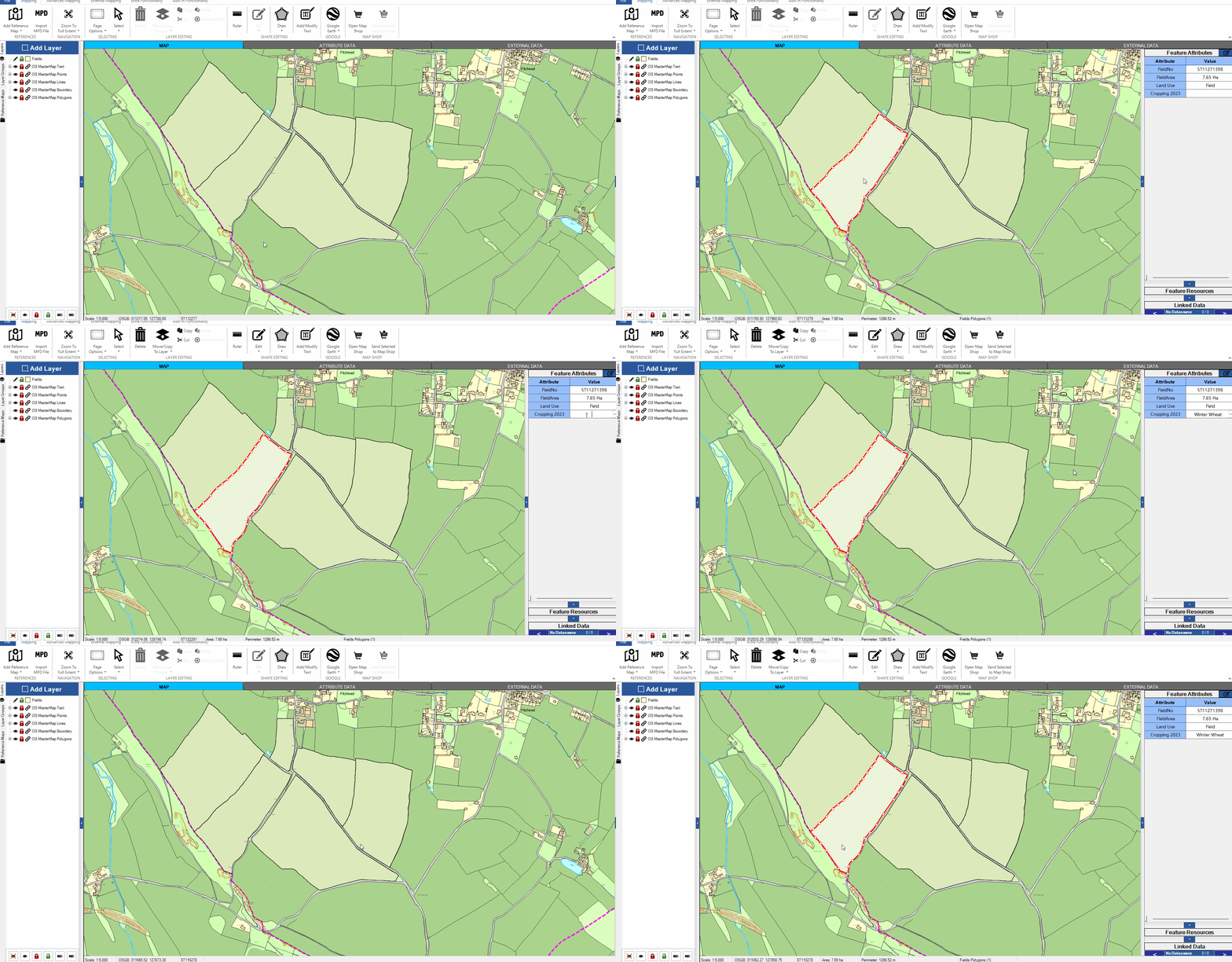
  1. Select the object you want to apply the attribute to.
  2. In the ‘Feature Attributes’ table to the right of the map click in the box next to the attribute you want to update and type the new value.

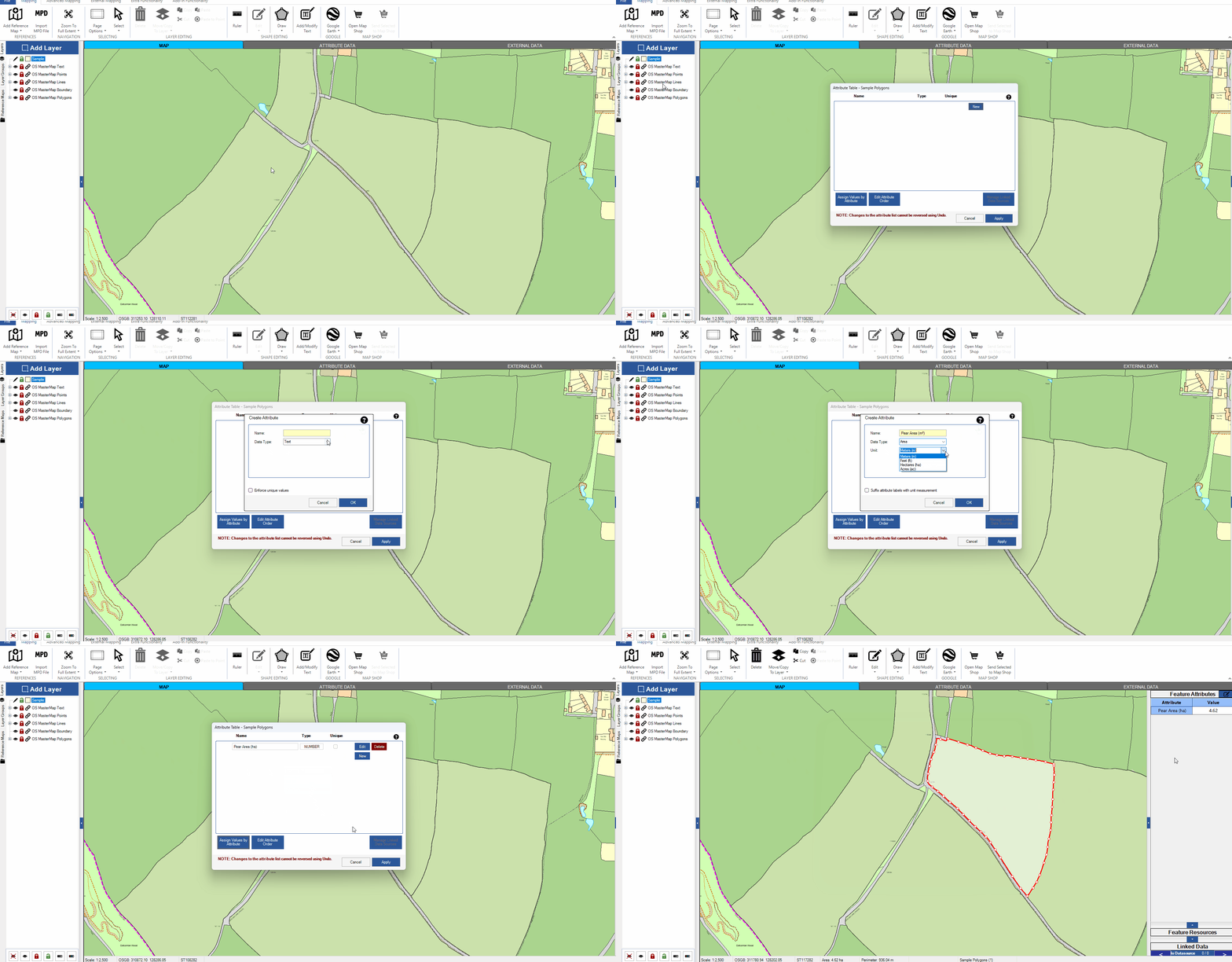
PearGIS can automatically calculate area and length attributes for an object.

  1. Right click on the name of the layer, select ‘Edit Attribute Table’.
  2. Click ‘New’ to add a new column heading.
  3. Under ‘Data Type’ select one of the options under the ‘Live Attributes’. Change the unit type if required and click ‘OK’.

The new attribute will be populated with the correct measurement for the object, which will automatically be updated if the object is changed.

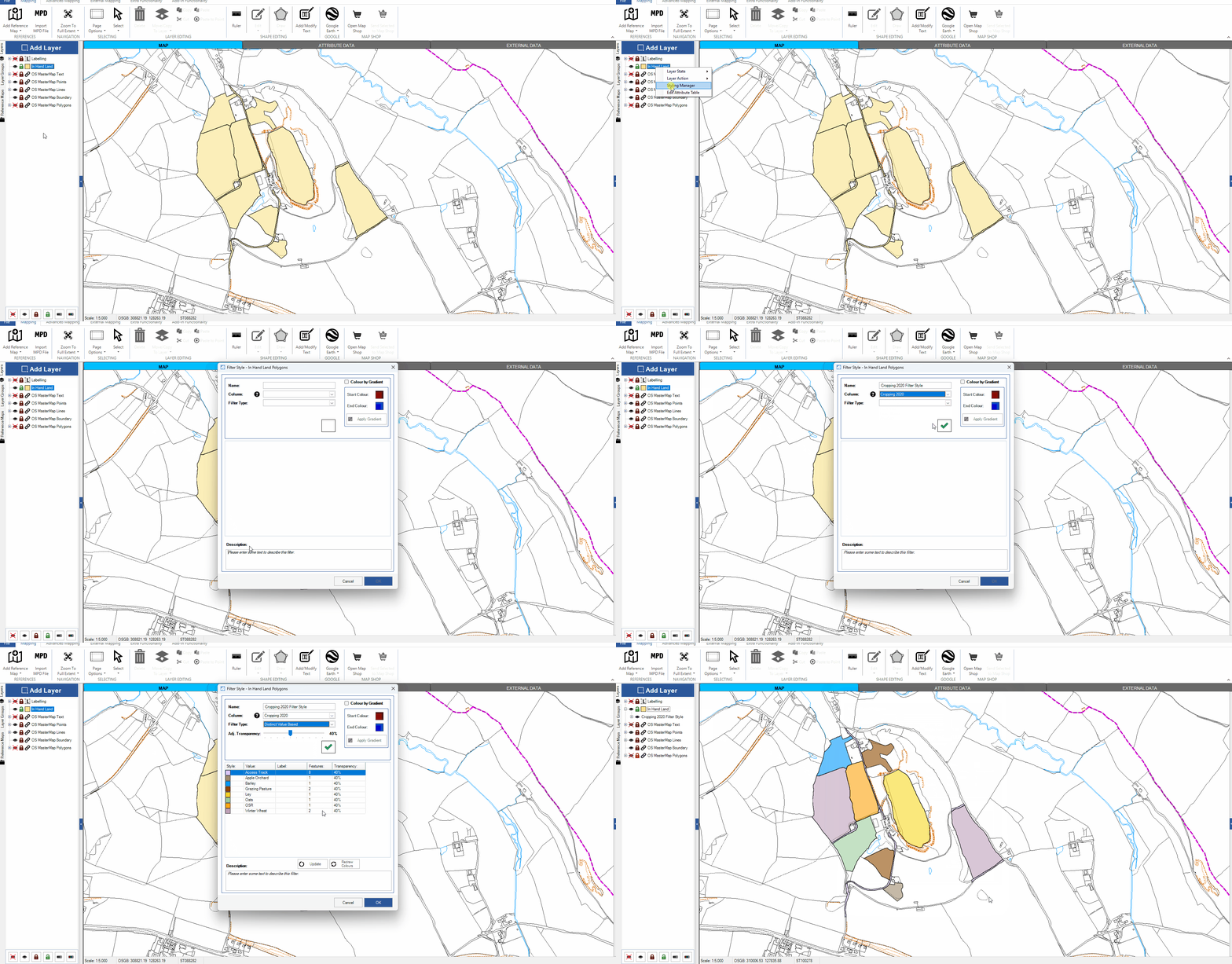
  1. Right-click on the layer name and select ‘Styling Manager’.
  2. Click the ’Add Filter Style…Using Attributes’ button.
  3. From the drop-down list in the ‘Column’ field, select the attribute you would like to style the layer by (the ‘Name’ field will then be populated and can be edited if needed).
  4. Select ‘Distinct Value Based’ from the ‘Filter Type’ drop-down list.
  5. The attribute values for the selected column will be shown in a list. To manually change a colour/style, double-click in the coloured square and the ‘Layer Styling’ pop-up will appear.
  6. Click ‘Ok’ to apply the filter style and ‘Finish’ to return to the map.

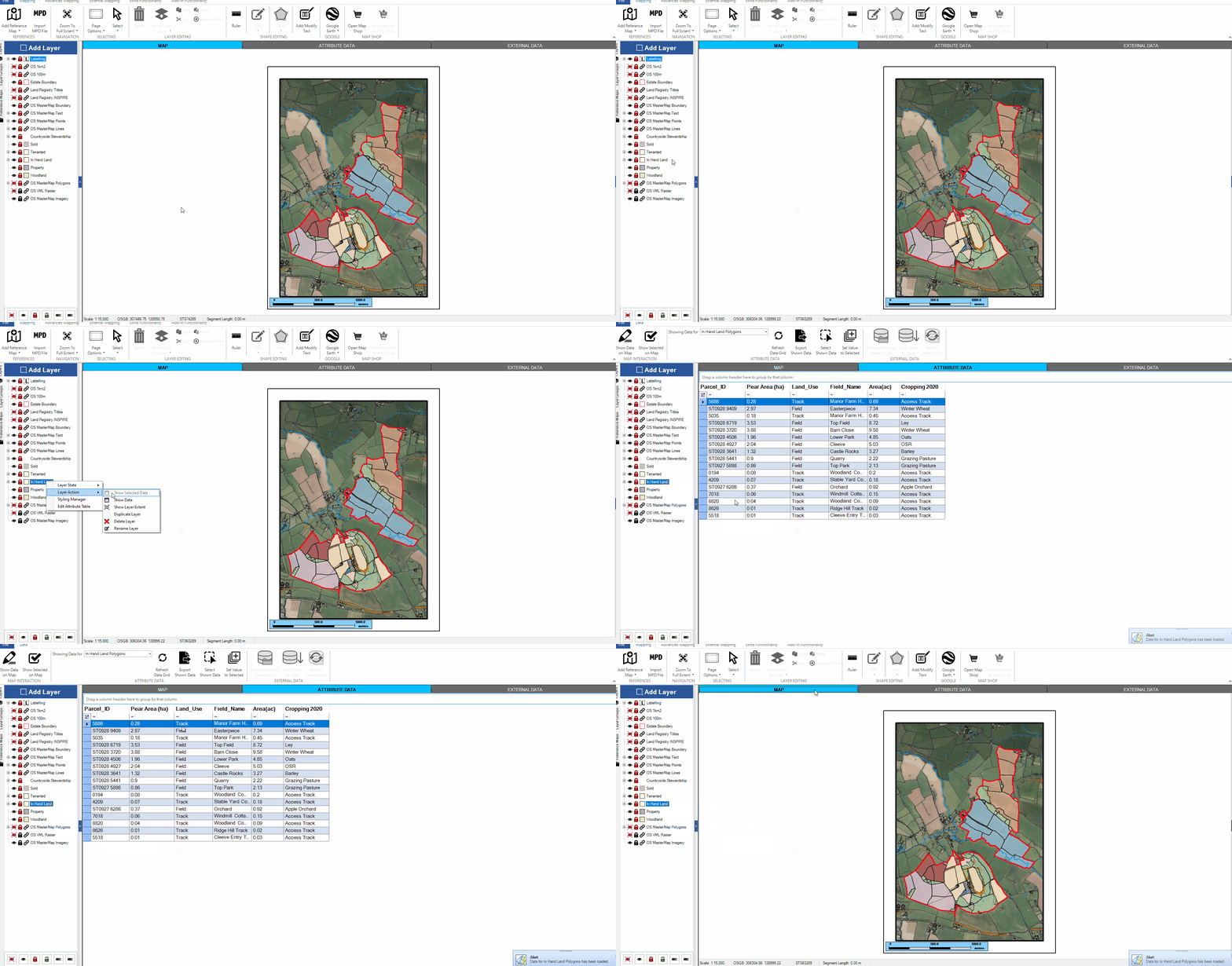
  1. Right-click on the name of the layer and select ‘Layer Action’ and ‘Show Data’.

The ‘Attribute Data’ tab will open, displaying a table with the attribute data for the features in the layer. To return to the map, click on the ‘Map’ tab at the top of the window.

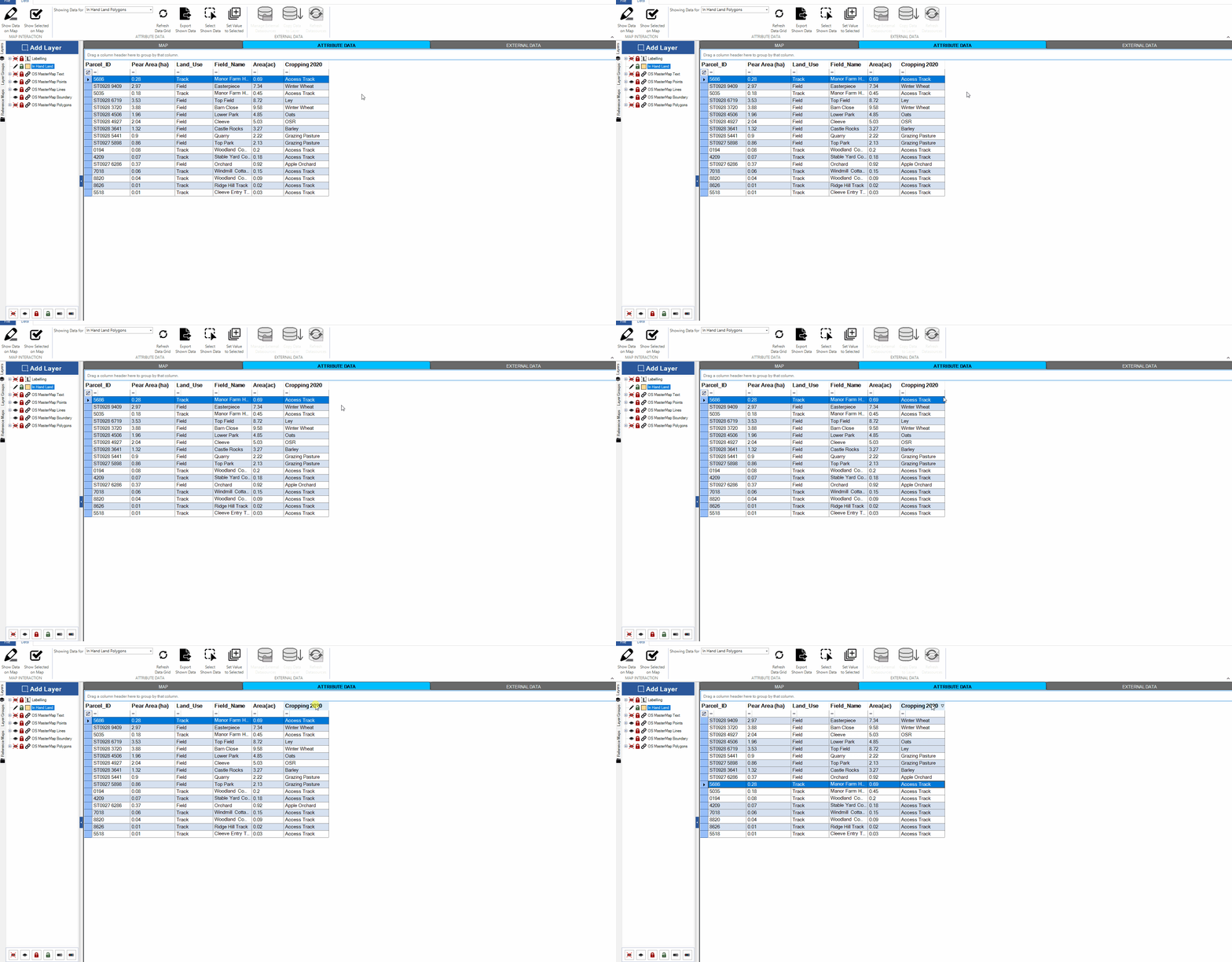
  1. In the ‘Attribute Data’ tab click the column header to sort features alphabetically or numerically based on the values in that column.
  2. Click the column header again to reverse the order.
  3. To revert to the original order click the ‘Refresh Data Grid’ button on the top ribbon.

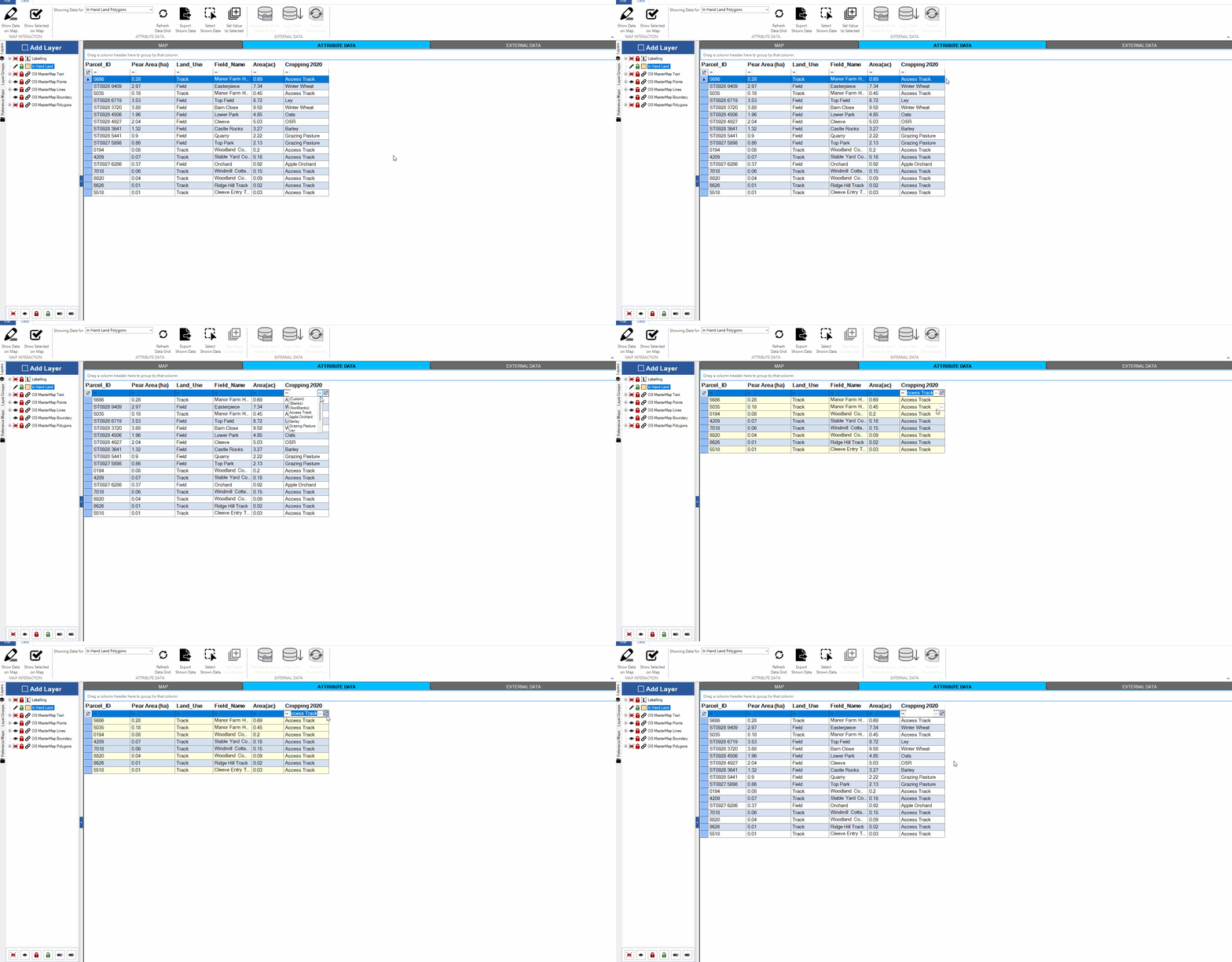
In the ‘Attribute Data’ tab there is a row below the column header that you can use to filter features in the table.

  1. Click the down-arrow to the right of the field to display a drop-down list of values in that column.
  2. Select a value to apply the filter.
  3. To remove the filter, click the symbol to the right of the down-arrow.

Selecting ‘(Custom)’ from the drop-down list will open an advanced filter, allowing you to apply a range of criteria.

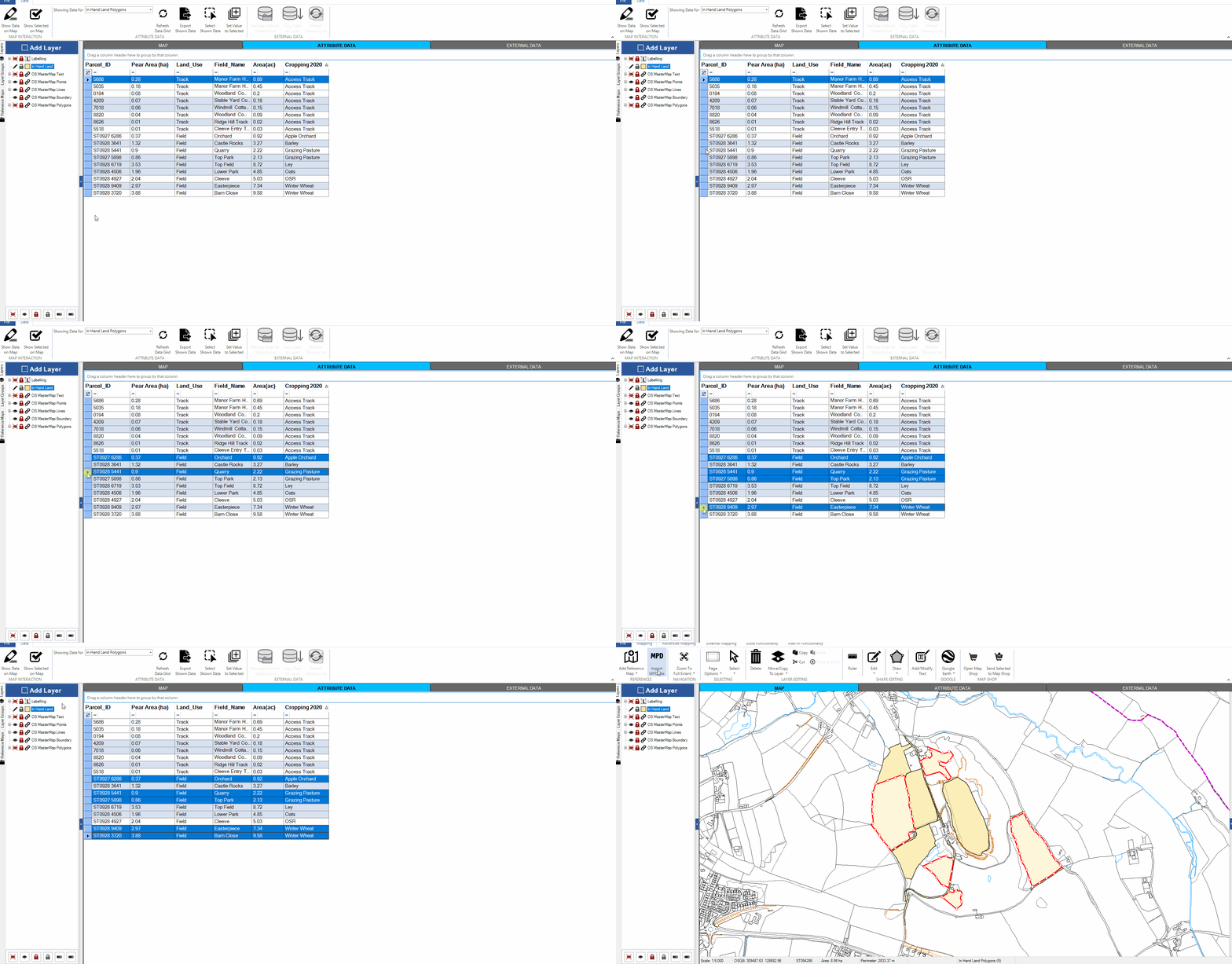
  1. In the ‘Attribute Data’ tab, select the features that you want to show on the map by clicking in the box at the start of the row (you can click and drag the mouse, or hold down ‘Ctrl’ on your keyboard to select multiple features).
  2. Click the ‘Show Selected on Map’ button on the top ribbon. The selected features will be displayed in the map window.

File structure and OS Data Management

Coming Soon

Coming Soon

Coming Soon

Coming Soon

Coming Soon

Coming Soon

Importing and Exporting Data

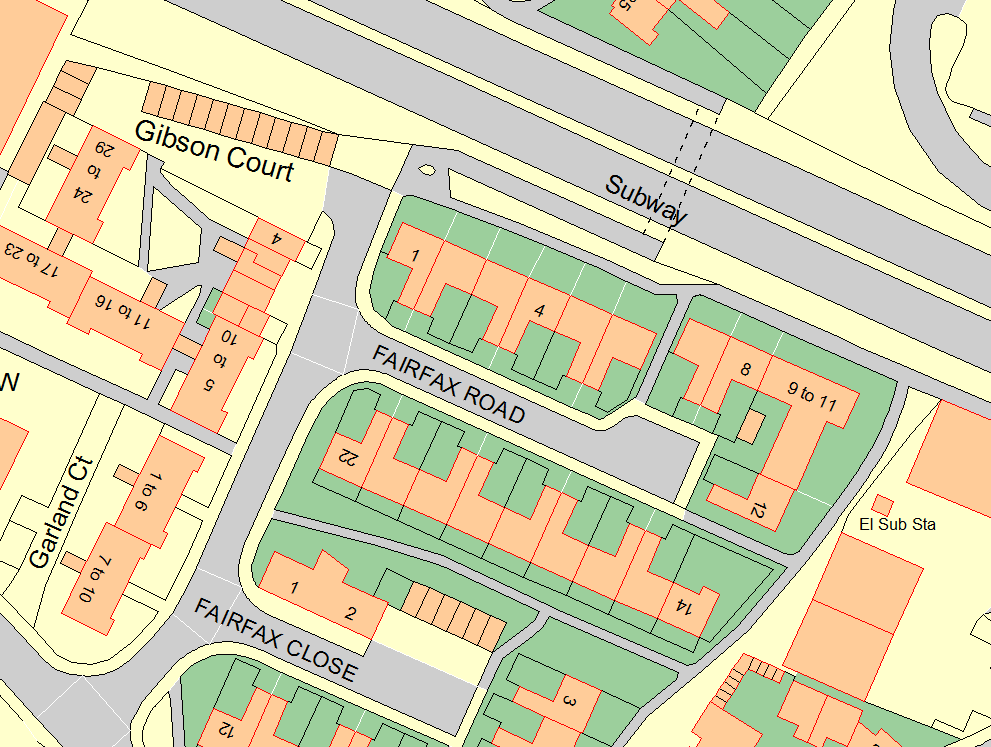
OS Mastermap data can be purchased from our Pear MapShop (If you do not have a MapShop account, please click here register your interest).

  1. Select ‘Add Reference Map’ from the mapping ribbon.
  2. Select ‘Add Pear OS files’ and click ‘Browse’ to navigate to your PearOS data and click ‘Open’.
  3. Once it has appeared in the box, click ‘Apply’.

OS Raster tiles can be purchased from Pear Technology (if you would like a quote for OS Raster data, please contact us here). Raster tiles are commonly provided in .TIF or .BMP formats.

  1. Select ‘Add Reference Map’ from the mapping ribbon.
  2. Select ‘Add Raster Files’ and click ‘Browse’ to navigate to where your raster tiles are saved.
  3. Select either a single tile, or multiple tiles by holding ‘Ctrl’ on your keyboard. Once selected, click ‘Open’.
  4. Enter an appropriate name for the raster as this name will also be given to the new layer that the data will be held on.
  5. Once the files have appeared in the box, click ‘Apply’.

Note: Raster data must be georeferenced so that they can be correctly scaled and projected onto the map.

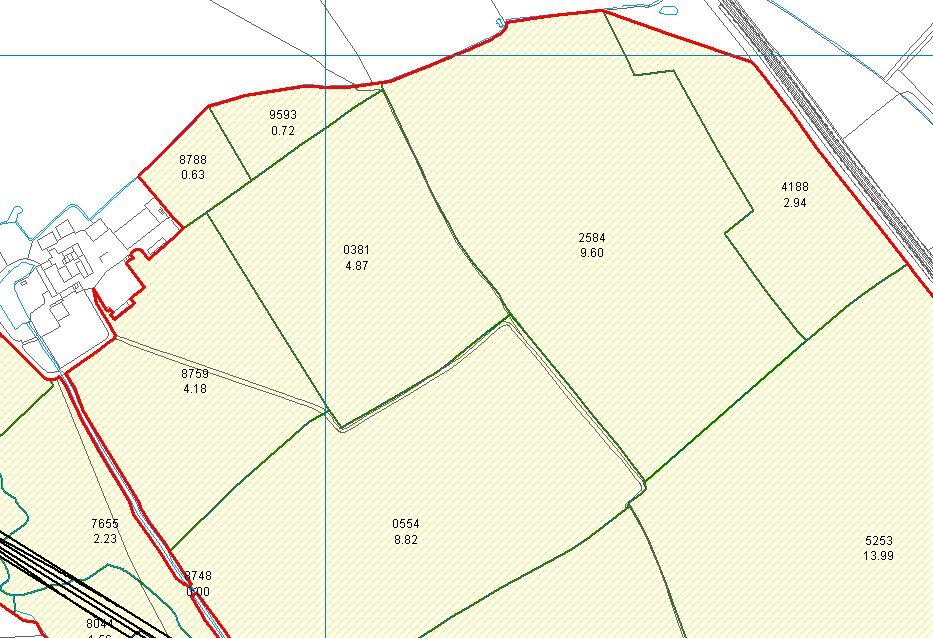
Shapefiles (.shp) are vector mapping files that contain line and area geometries. This format is compatible with most GIS systems.

  1. Select ‘Add Reference Map’ from the mapping ribbon.
  2. Select ‘Add SHP File’ and click ‘Browse’ to navigate to the folder where your shapefiles are kept.
  3. If you want to upload more than one shapefile, hold ‘Ctrl’ on your keyboard and select multiple files. Once you have selected your files, click ‘Open’.
  4. If adding a single shapefile, you can give this shapefile a layer name before importing.
  5. Click ‘Apply’ to complete the import.

An Excel spreadsheet that is saved in a .CSV format can be uploaded into PearGIS.

  1. Select ‘Add Reference Map’ from the mapping ribbon.
  2. Select ‘Add CSV File’ and then click ‘Browse’ to navigate to your CSV file.
  3. Enter an appropriate name for the CSV file as this name will also be given to the new layer that the data will be held on.
  4. Select the correct coordinate system and link the columns at the bottom of the screen to the corresponding columns from the CSV file.
  5. Once linked, click ‘Apply’.

CAD drawings (DWG or DXF format) can be imported into PearGIS. This method will add features from a CAD drawing to your map permanently, allowing you to edit and style them.

  1. Click the ‘Import’ button above the layer list.
  2. Select ‘Import DWG/DXF’.
  3. Browse to your CAD file and click ‘Open’
  4. Select the correct unit type for the drawing (most drawings are either in metres or millimetres).
  5. Under ‘Advanced options’ you can choose to limit or expand the features that will be imported.
  6. Click ‘Import’ to add the contents of the CAD drawing to your map.

Note: If you’re intending to use the drawing for a GPS survey we strongly recommend you check that the drawing has been georeferenced (drawn in the correct location geographically); if not this will need to be corrected prior to carrying out the survey. This can be done by the surveyor/architect who provided the drawing, alternatively we can offer a georeferencing service for a small charge.

CAD drawings (DWG or DXF format) can be imported into PearGIS. This method will add your CAD drawing as a reference map; you will not be able to edit any features from the drawing in this format (see ‘Importing a DWG or DXF (CAD) file’ for importing features permanently).

  1. Select ‘Add Reference Map’ from the mapping ribbon.
  2. Select ‘Add CAD Files’ and click ‘Browse’ to navigate to your CAD files.
  3. Enter an appropriate name for the CAD file as this name will also be given to the new layer that the data will be held on.
  4. Once it has appeared in the box, click ‘Apply’.

Maps that have been created in PT Mapper can be transferred across to PearGIS.

  1. Select ‘Import MPD File’ from the mapping ribbon.
  2. Next, navigate to the MPD file and click ‘Open’.
  3. A message will then be displayed, checking that you wish to import this particular file, click ‘Yes’.

MPD files can take a few minutes to load and once the import has been completed, the map will appear just like it did in PT Mapper. All of the layers should now appear in the layers list.

PearGIS can export to the following formats : Shapefile, KML, DXF and Pear Reference Map. When exporting, you can choose to export a few selected features or export entire layers.

If you want to export only a few features (rather than an entire layer), you will first need to select these objects on the map (making sure this layer is unlocked) before starting the export process.

  1. When you are ready to export, select ‘File’ and then ‘Export’.
  2. Choose what file type you want to export to (Shapefile, KML, DXF, Pear Reference Map).
  3. Select the ‘Geometry Type’. If you are unsure what geometry type to export, click ‘All’ as this will cover all types
  4. Next choose whether to export features you have already selected, or an entire layer.
  5. When opting for ‘Select Layer’, the layer list will load and you can then select which layers you wish to export.
  6. Check your projection (‘Grid Coordinates’ is fine as a standard).
  7. Finally, click ‘Create’.

Note: If you are exporting a lot of information, you can select the ‘Compress Output (zip)’ before clicking ‘Create’ and this will save your export into a zip folder.

Advanced

Features that have been drawn in PearGIS can be superimposed onto Google Earth. You will need to have Google Earth Pro installed to do this; if you do not have it installed, please use this link –  http://www.google.co.uk/earth/download/gep/agree.html

  1. Unlock the relevant layer. 
  2. Select the layer object(s) you want to view in Google Earth.
  3. Select the ‘Google Earth’ drop down menu on the right side of the main ribbon.
  4. Select the ‘Google Earth’ option to display the selected features in Google Earth.

You can open PearGIS layers in Google Earth by selecting the relevant layers and choosing ‘Google Earth’ from the ribbon; click here if you are unsure of how to do this.

Once the PearGIS features have appeared in Google Earth, click in the middle of the feature to display the attribute information.

Drawings created in Google Earth can be copied and pasted into PearGIS.

  1. Firstly, create a new layer for the Google Earth drawing to be added to. The layer type must match the drawing type e.g. if you want to draw a polygon, you must create a polygon layer.
  2.  Next, open Google Earth and find the feature you wish to copy.
  3.  Use the drawing tools located at the top of the page and select what drawing type you wish to use. This will load a new tab which should be moved to one side whilst you draw.
  4. Left-click to start drawing. If you make a mistake, right-click to undo.
  5. Once you have finished drawing, click ‘OK’ on the tab that appeared. A new layer will now appear on the left-hand side.
  6.  Right-click on the new layer and select copy
  7. Go back to PearGIS and select ‘Google Earth’ from the mapping ribbon and then select ‘Import Google Earth Data’. The new drawing should now appear on your map.

Note: A feature can only be copied onto a layer setup with the correct feature type; (Polygons, Lines, Text or Points).

  1. Open up the map you will be copying a feature from.
  2. Unlock the relevant layer and select the feature(s) to be copied.
  3. Open the ‘Advanced Mapping’ ribbon and select the ‘Clipboard’ drop down menu.
  4. Select ‘Copy to Clipboard’ and the feature(s) will be copied.
  5. In a separate window, open up the map you will be pasting the feature onto. 
  6. Put the pen onto the layer you want to paste onto by double clicking the eye.
  7. As before, select the ‘Clipboard’ from the ‘Advanced Mapping’ ribbon
  8. Select ‘Paste from Clipboard’

Note: All mapping features have coordinates, therefore they will appear in the exact geographical location as they were in the original map.

  1. Open up the map you will be copying a layer from.
  2. Unlock the layer you want to copy.
  3. Open the ‘Advanced Mapping’ ribbon and select the ‘Clipboard’ dropdown menu.
  4. Select ‘Copy Layer to Clipboard’ and then select which layers you wish to copy. Then click ‘Copy’ and close the tab using the ‘X’.
  5. In a separate window, open up the map you will be pasting the layers onto.
  6. Select the ‘Clipboard’ from the ‘Advanced Mapping’ ribbon.
  7. Select ‘Paste from Clipboard’.

  1. Select a field you would like to buffer.
  2. Open the “Advanced Mapping” ribbon, and select the “Create Field Margins”. 
  3. This will generate a pop up window where you can specify the margin width and if you would like to calculate the net area. You can also select which layer you would like the margin to be added to. Please note, only unlocked layers will be selectable.
  4. Once happy, click “Buffer Selected Area”.
  5. This will add a buffer around the entire field, from here we can reduce it as necessary.
  6. To do this, hover the mouse over the margin, and a red line will appear. Right-click to mark to cut the margin where it starts and finishes.
  7. Once cut, you must click to select the section of the margin you want to keep, and then click “Apply”.
Register to Download

    Email (required)

    Name (required)

    Organisation

    [mailpoetsignup mailpoetsignup-943 mailpoet_list_4 default:on]

    ×
    Sign up for our newsletter

    Interested in how mapping can help you? Sign up for our occasional newsletter about how people are using maps for land and asset management.

    ×
    Take a tour

    ×
    Register to Download

    Enter your details below to receive an email with download links.

    ×
    Data Sets
    ×
    Ordnance Survey Data in Pear Products

    MasterMap

    ×
    Land Registry Data in Pear Products

    ×
    Rural Payments Agency Data in Pear Products

    ×
    INSPIRE Data in Pear Products

    ×
    Register Interest

    Please enter your details below to register your interest in Map Shop.

    ×
    Register Interest

    Please enter your details below to register your interest in PearGIS. [wysija_form id=”5″]

    ×
    PearGIS Trial

    Enter your details below to receive an email with download links.

    ×